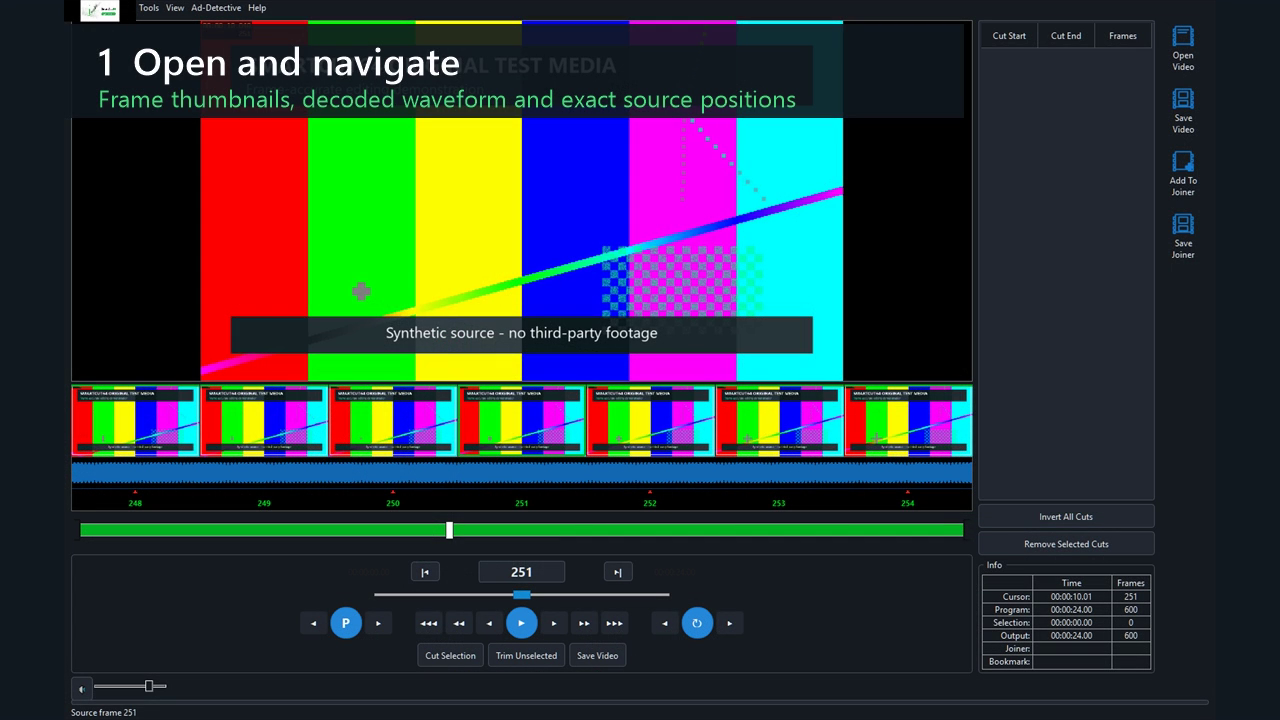
Opening AV1 and H.264 MP4 files from a network drive
From 1.0.31, supported AV1 MP4 files can open an editing timeline from container metadata without first reading all video packets. This can reduce the initial wait on a mapped or UNC network drive. Unsupported layouts continue through the existing indexing path.
From 1.0.34, supported H.264 MP4 files can also prepare their timeline from container metadata and a short decoded opening check. This avoids reading the entire recording just to start editing. Unsupported files retain the existing indexing path.
Before exporting, SmartCut64 verifies the complete frame map against the source. This check may still read through the source before output begins. The faster opening path does not remove export checks.
Before the first edit
- Install the complete signed package; do not move only smartcut-gui.exe away from its Qt, FFmpeg, runtime and plugin files.
- Keep sufficient free space for a temporary output beside or within the selected destination folder.
- For GPU-assisted preview, install a current NVIDIA, Intel or AMD display driver. Software decoding remains available.
Open a source
Click the large Open Video target, press Ctrl+O, use File > Open Video, drag a media file into the editor, or open an associated file from Windows Explorer. SmartCut64 probes streams and creates a display-order frame index.
The preview becomes usable as soon as enough information is known. Thumbnails and the audio waveform may continue filling in without blocking the interface, and an unchanged source can reuse its cached navigation data later.
Make a first test
- Set a short Mark In/Out range and choose Cut Selection.
- Switch to Preview Your Edits and confirm the cut is skipped.
- Open Save Video, leave Matroska MKV and Intelligent selected, and choose a new destination name.
- Read the completion summary and keep the export report if you are testing a new codec/container combination.